Download Data
The CQDG is working to set up a cloud computing space allowing researchers to carry out their analyzes without having to download the files.
Downloading molecular data using the tool ferload
Downloading genomic data files, once access has been obtained, is done using the download tool ferload.
Overview
The Ferload CLI Client is a command line interface designed for downloading files. It is compatible with Windows,
macOS and Linux and requires Java Runtime Environment (JRE) version 8 or higher.
Prerequisites
Verifying Java
Before installation, check your Java version:
java -version
Installation
Steps
- Visit the project's github page: https://github.com/Ferlab-Ste-Justine/ferload-client-cli .
- Select and download the latest version or a specific version.
- Download the file
ferload-clientin the “Assets” section. Confirm if necessary.
After downloading
For macOS/Linux, make the file executable:
chmod +x ./ferload-client
Use
Run ferload-client without arguments to display all possible commands:
- macOS/Linux:
./ferload-client
- Windows:
Use the command line or PowerShell:
C:\Users\user>ferload-client
If you encounter an error, rename the file to ferload-client.bat.
Expected output
Official Ferload Client command line interface for files download.
  -h, --help      Show this help message and exit.
  -V, --version   Print version information and exit.
Commands:
  configure   Help configure this tool.
  download   Download files based on provided manifest.
Configuration
The tool must be configured before you can download any files.
Configuration command
./ferload-client configure
Follow the instructions to complete the setup.
URL ferload
You must enter the URL for ferload, who is https://ferload.cqdg.ca/. Press 'Enter' to keep the default value.
user@localhost:~$ ./ferload-client configure
Welcome to Ferload Client! This command-line tool is designed to simplify
the process of downloading files by utilizing a provided manifest.

Ferload url : https://ferload.cqdg.ca/

Retrieve Ferload configuration ✅

Extract authentication method ✅

Configuration has been successfully updated ✅
Download
Manifest file or manifest ID
You must first obtain a file or manifest ID from the CQDG portal, in the "Files" tab of Explorer. Make sure you have been granted access to the files you wish to download (green padlock icon).
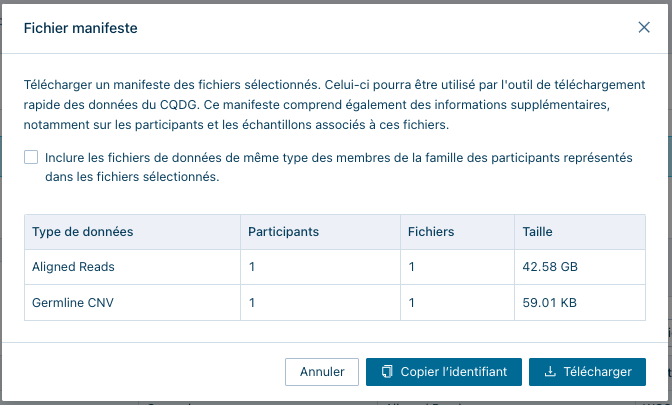
The manifest file is in .tsv format and consists of several columns as well as a header and a row corresponding to each file in the manifest. The identifier is simply a code that will be copied and pasted into the download command.
Download command
Use the download command to start the download. Use the -m=<manifest> and -o=<outputDir> parameters to specify the location
of the manifest file as well as the target location for the files that will be downloaded.
./ferload-client download -m ./data/m1.tsv -o ./data
If it is not practical to use a manifest file (for example, you want to download in a cloud environment accessible by ssh), use a manifest ID with the parameter -i=<identifiant>.
./ferload-client download -i copier-l-identifiant-ici --manifest-only -o ./data
You can also download the manifest file itself via the ferload tool with the parameter --manifest-only.
Obtain a token
You must then obtain a token to authenticate your file access. Copy the URL in your web browser and follow the authentication steps.
You will get a token which you must paste on the command line.
Example
Welcome to Ferload Client, this tools will download
the files based on the provided manifest.

Checking manifest file                             ✅

Retrieve device token                              ✅

Copy/Paste this URL in your browser and login please:
http://localhost:32771/realms/CQDG/device?user_code=NNLJ-AOOQ ✅

Retrieve Ferload download link(s)                  ✅

Compute total average expected download size       ✅

The total average expected download size will be 76 MB do you want to continue
(your available disk space is: 60 GB) ? [yes]: yes

FIL0000001  [##################################################]     76 /     76 MB (100%) 📦
FIL0000002  [##################################################]     76 /     76 MB (100%) 📦

Total downloaded files: 12 located here: ./data
Progress will be displayed for each file.
Exporting tables to the Data or Variant Explorer
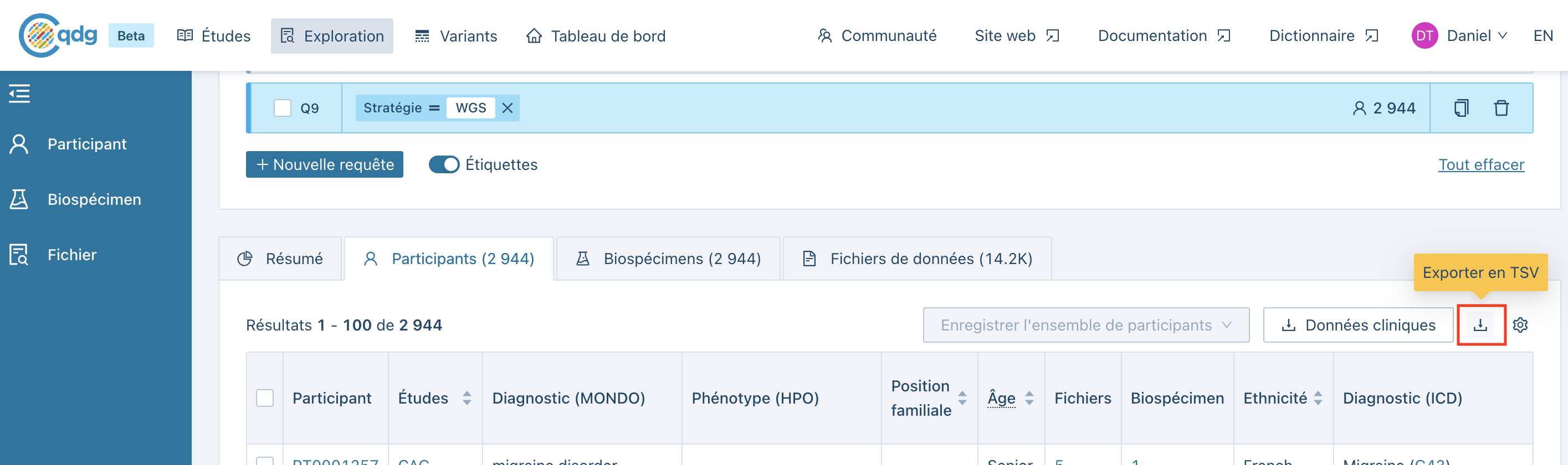
In the data or variant explorer, the content of the results tables can be downloaded at any time using the "Export to TSV" button located at the top right of the table:
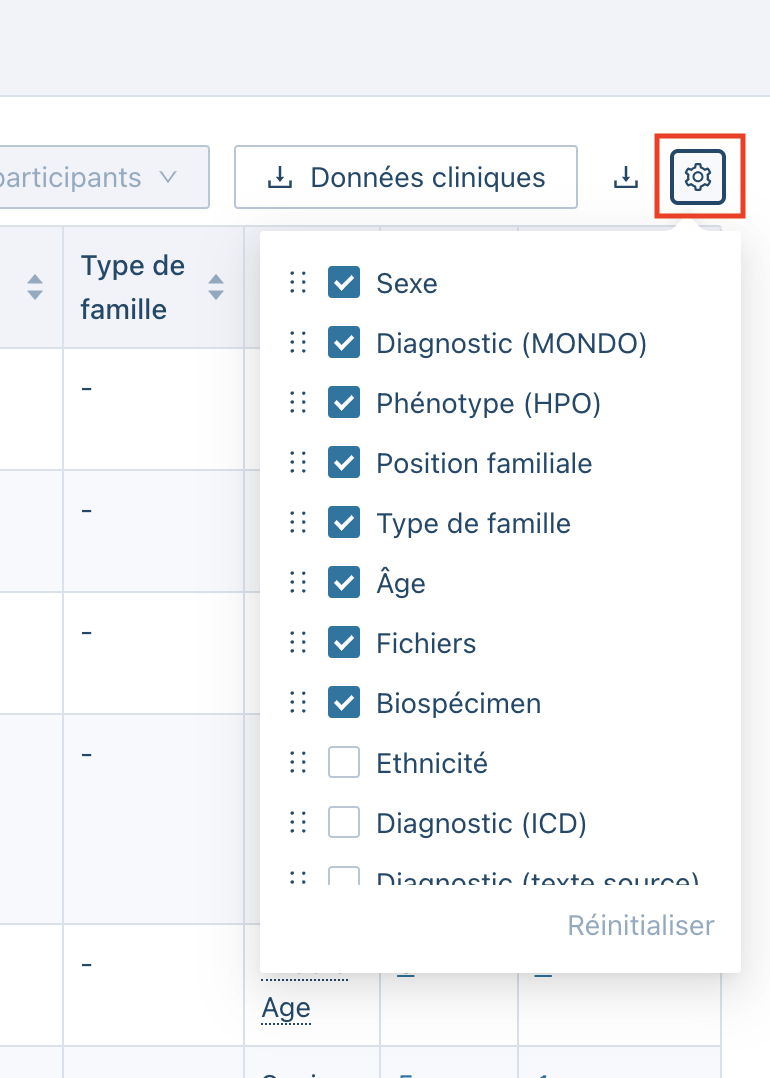
The choice of columns is made using the “Columns” button to the right:
All clinical data for your selection can be downloaded in .xlsx format from the "Clinical data" button.