Filters and Datasets
Filters
A filter allows you to target the data that you consider relevant to your research question. For example, you can filter participants based on clinical criteria (age, phenotype, etc.) to build a cohort.
The data that matches the filter is presented graphically in the "Summary" tab and you can look at the "Participants", "Biospecimens" and "Files" tabs to see the data in tabular form. (Variants are presented in table form only.)
Saving and sharing
You can manage and share your filters using the buttons at the top of the section:
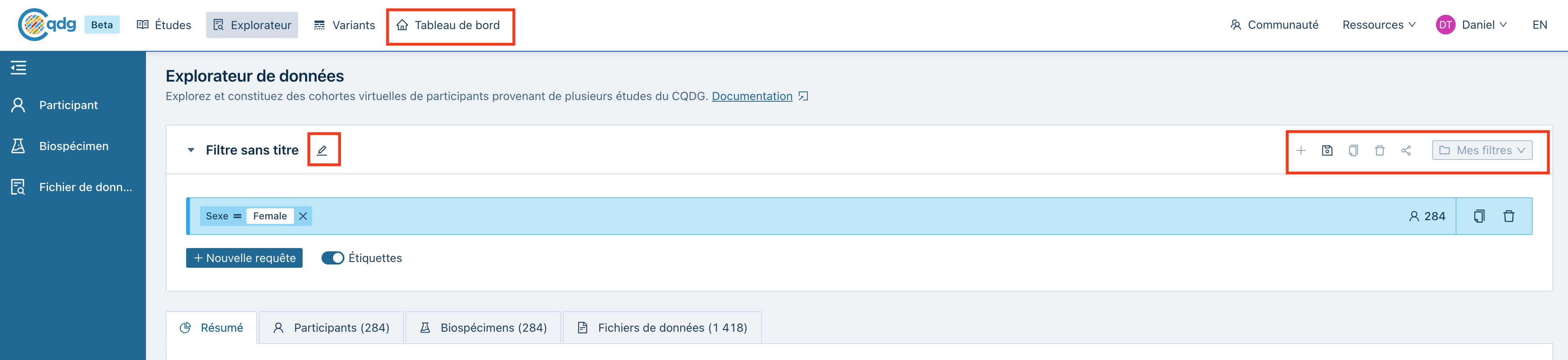
Saved filters are also accessible in the "Dashboard".
Note that saving a filter only preserves the filter rules and not the result itself. The result may change if, for example, the CQDG data is updated. To save a specific result, use a dataset.
Creating a filter using the filter column
The filter column is located on the left in the Data Explorer. The selection criteria are visible by clicking on “Participant”, “Biospecimen” or “File”.
A filter contains one or more queries. To start building your filter, add a first criterion to the query.
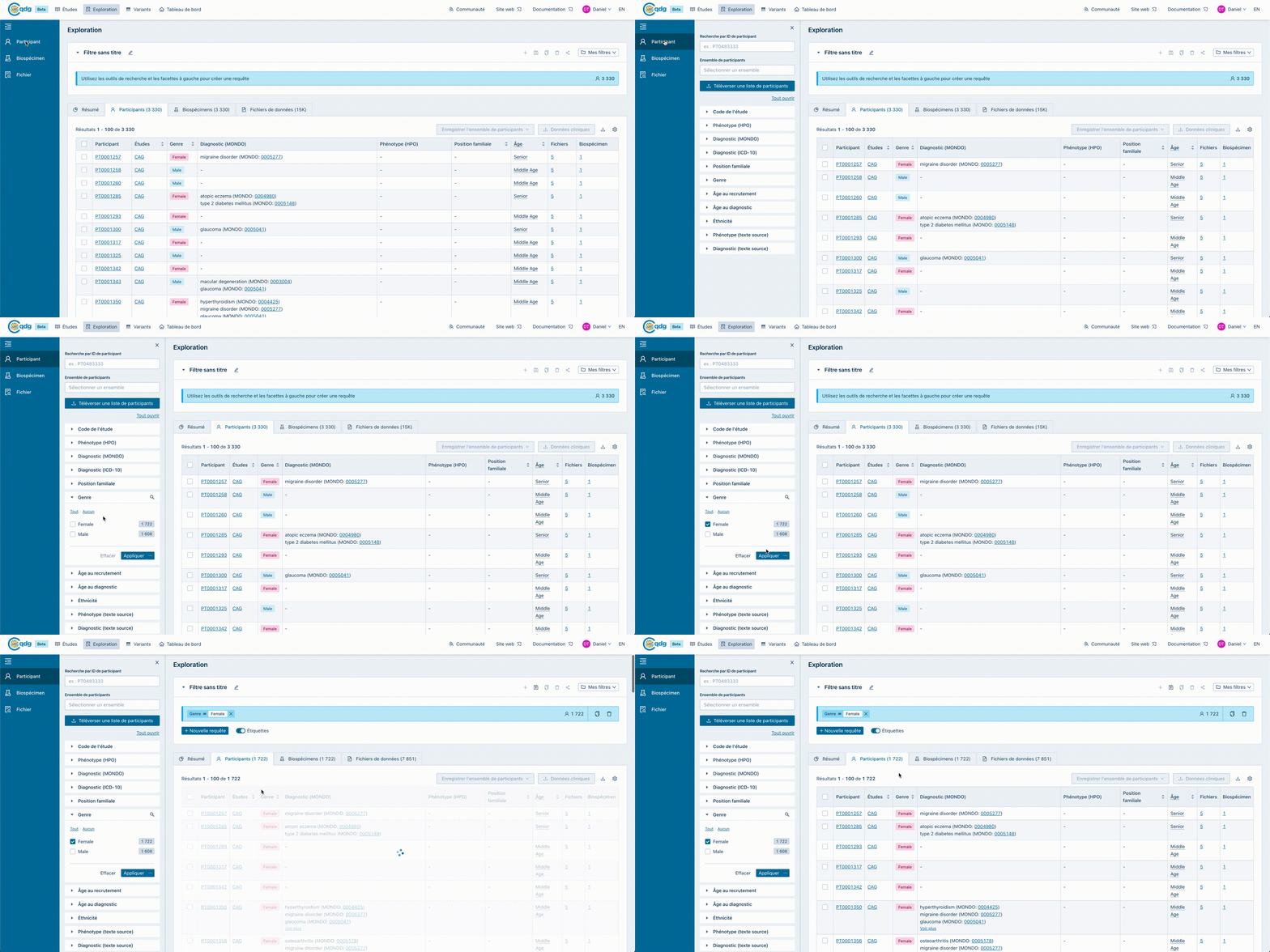
In the example below, we choose the criterion sex = Female:
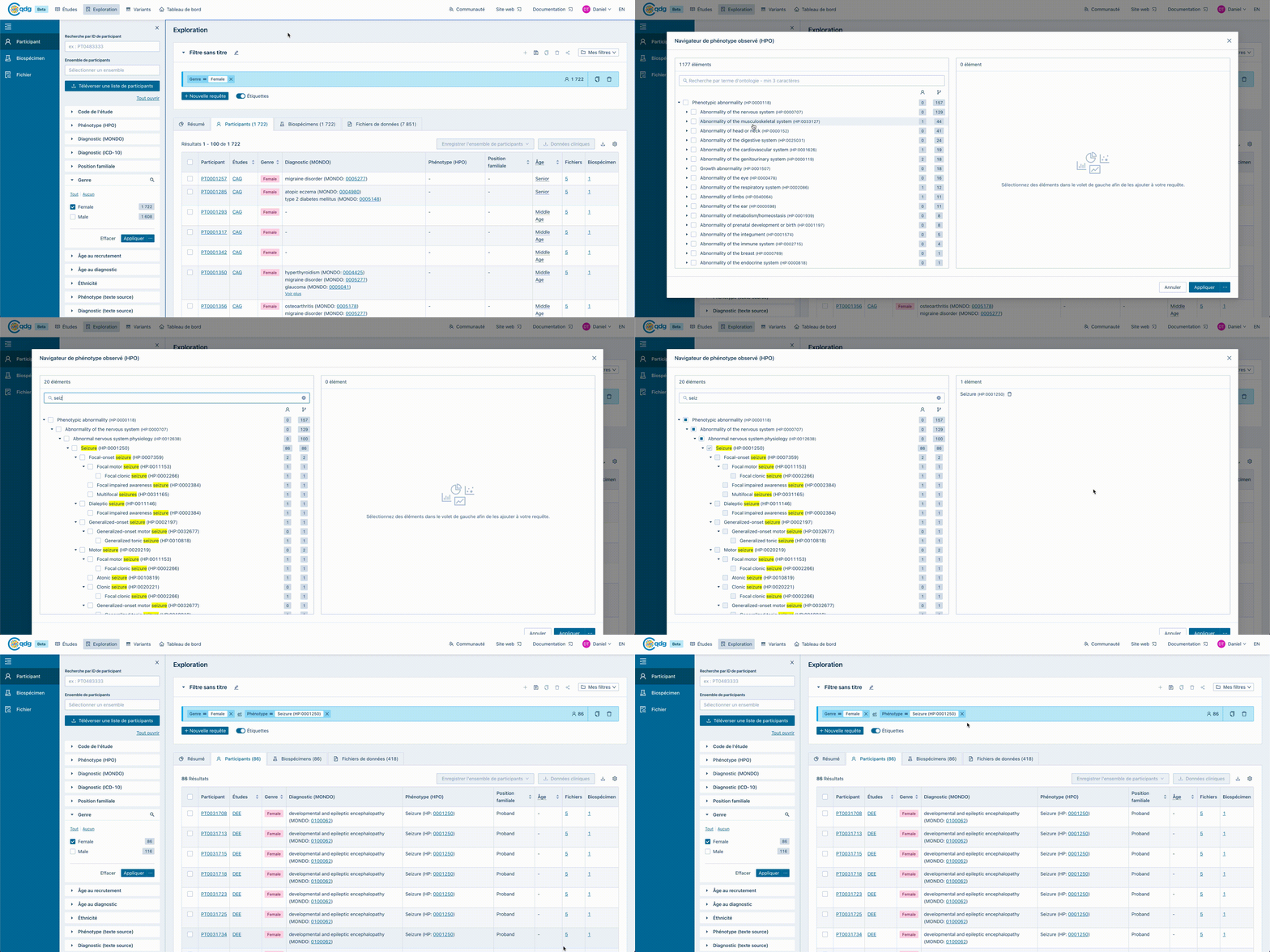
We can add another criterion to the same query, for example, a phenotype of interest (using the HPO ontology):
Now let's add a second query. It is independent of the first query, it applies to all CQDG data. The results displayed at the bottom of the page depend on which query is selected (in blue):
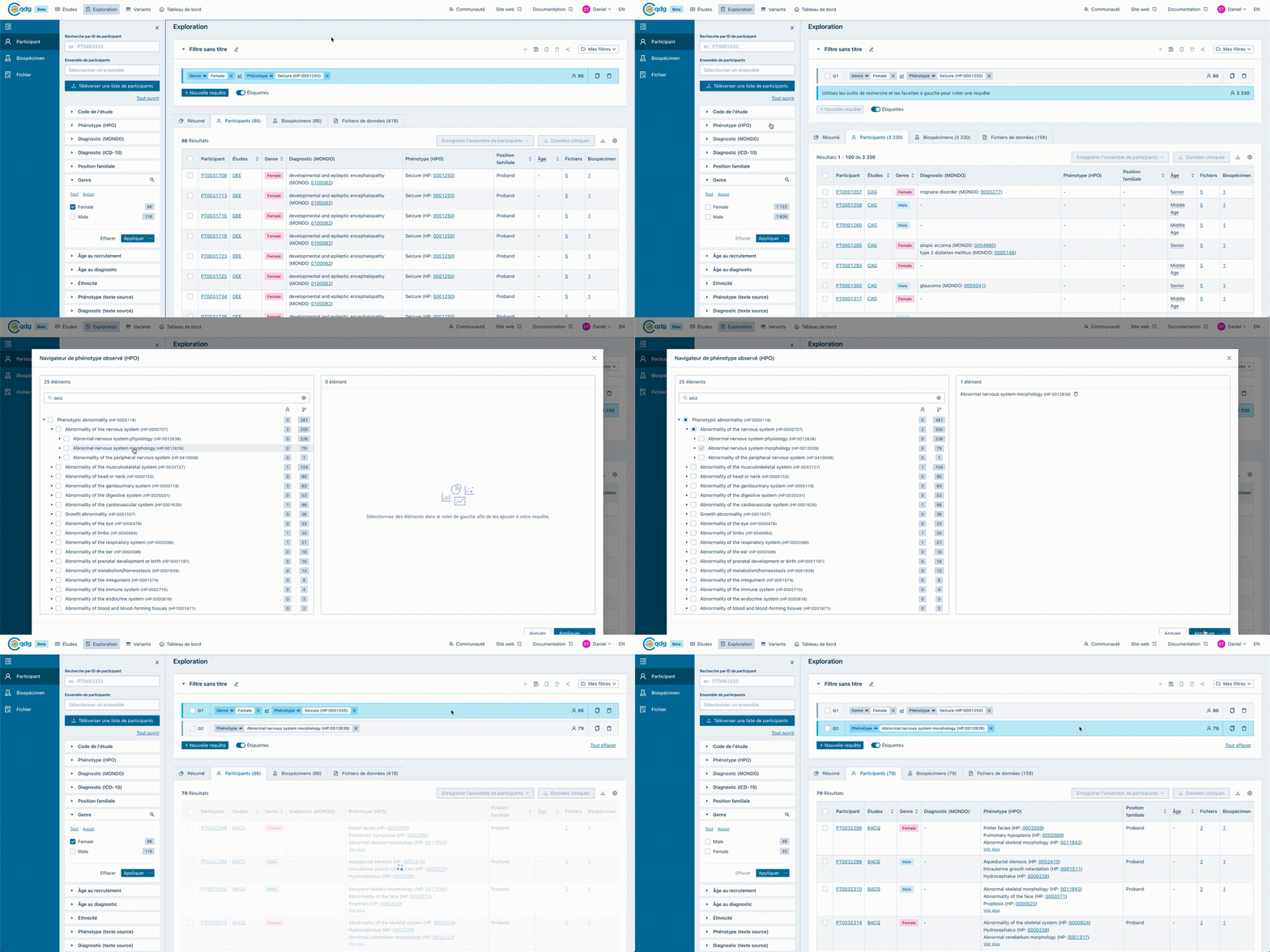
We can now combine these two queries together with either et or ou. Check each query (labeled Q1 and Q2) and choose Combiner.
We then obtain a new query which combines the results of the previous queries. Note that you can combine the selection criteria
within the same query, as we did in the query Q1 (sex and phenotype). The advantage of separating them is that you can easily
see the effect of each query independently.
To keep this filter, click on the “Save filter” button at the top right. AJOUTER UNE PHOTO
Creating filters in the Summary tab
It is also possible to build a query visually using the graphs shown in the Summary tab. Note that the graphs are updated as the search criteria are applied.
AJOUTER UNE PHOTOSets
In the Variants section as well as in the Data Explorer under the "Participants", "Biospecimens", or "Files" tabs, use the "Save Selection" button to create a dataset.
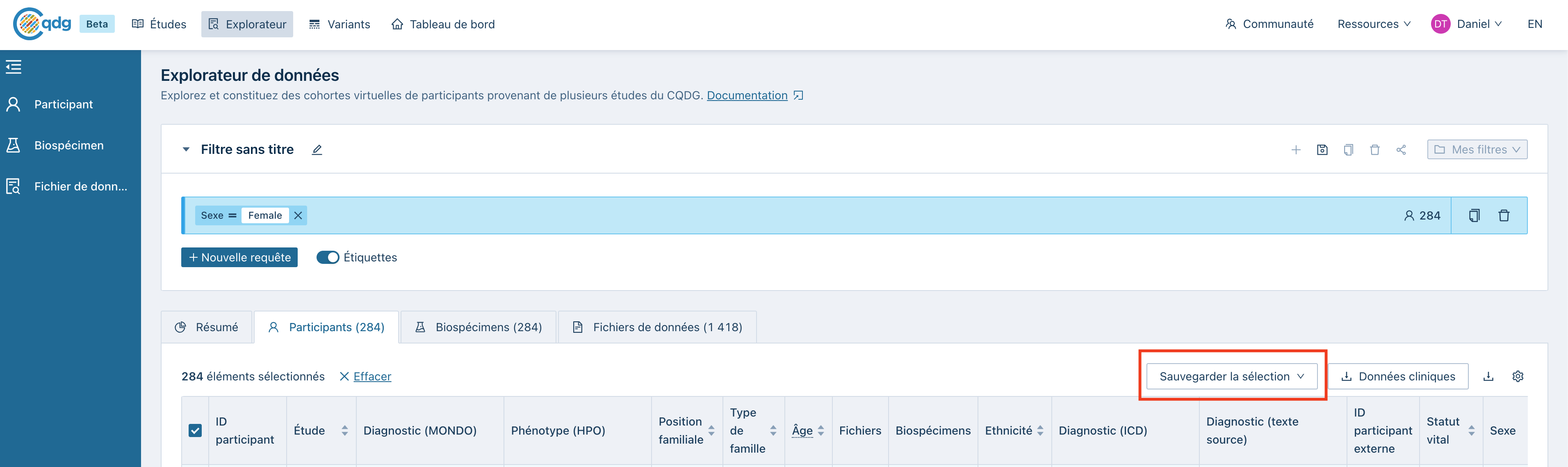
Datasets can be managed in your "Dashboard".
A dataset preserves a selection of participants, biospecimens, files or variants. This selection could be the result of a filter you just created. By saving the dataset, the selection is preserved and will remain unchanged even if the CQDG data is updated.